Mega Ramp for Lucky Blocks Driving, Camera & HUD Controls
Master Mega Ramp car controls, camera, base UI, Shop, and Index on desktop, mobile, and gamepad.
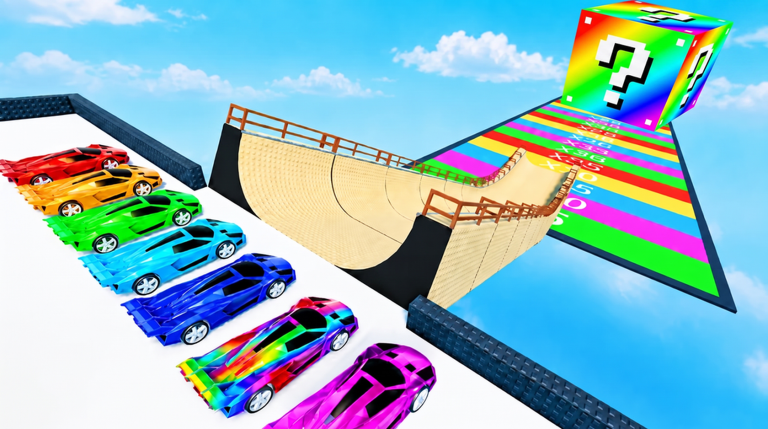
Clean inputs win more Lucky Blocks than flashy Shop screenshots. Mega Ramp for Lucky Blocks is a Roblox Simulation / Tycoon experience by Cayman 718 where you drive a car down a Mega Ramp, launch into the Landing Zone, collect Lucky Blocks, and manage base income. This page is the dedicated controls reference: driving, camera, HUD, base, Shop, and Index. For pass spending patterns, open Gamepasses. For the wider player hub, return to Players.
Servers hold a maximum of 5 players, so you can watch other lines without a chaotic lobby. The Roblox description may still mention Squishy Dumplings from older branding; the control loop is still ramp → land → collect → place → upgrade.
Desktop driving controls
Most keyboard players should expect classic Roblox vehicle mappings:
| Input | Typical action |
|---|---|
| W / A / S / D or arrow keys | Accelerate, steer, and reverse the Mega Ramp car |
| Mouse | Orbit and aim the camera while lining up |
| Space | Context jump / dismount style actions if the vehicle rig allows |
| Shift / Ctrl | Optional brake or modifier keys if the experience enables them — test on a safe run |
| E / click prompts | Collect Lucky Blocks, open UI prompts, confirm placements |
| Esc / Roblox menu | Leave, respawn options, or settings |
Exact bindings can vary with Roblox Settings → Keyboard and with whatever the place’s vehicle scripts expose. If steer feels inverted or sluggish, check Roblox sensitivity first before blaming the car tier.
Ramp line checklist
- Spawn or reclaim your car at the designated start.
- Center on the Mega Ramp before full throttle.
- Hold a straight line — wall scrapes kill speed and distance.
- Keep throttle through the lip so the launch arc carries into a Landing Zone band you can actually collect.
- After landing, finish the Lucky Block interact before opening menus.
- Return to base, place or replace units, then queue for the next run.
If launches stay short after perfect lines, you likely need a stronger car — see the car tier list and How to Jump Farther — not a different letter key.
Camera habits that save distance
- Zoom out enough to see the ramp lip and the first Landing Zone markers.
- On trackpads, slow camera speed so a swipe does not yank you offline mid-run.
- After a big airtime, snap focus back to your character or car before walking into Shop or Index.
- Avoid first-person experiments on your money jump; third-person is usually clearer for Mega Ramp formula titles.
- If another player’s car crosses your view in a 5-player server, pause a beat at the top rather than swerving into a barrier.
Camera is not a paid upgrade. It is free distance. Treat it like part of the car.
Mobile touch controls
Mobile can clear the loop, but precision drops:
- Use the on-screen drive stick with short practice launches before committing a banked car run.
- Keep thumbs clear of accidental UI buttons near the stick.
- Rotate the camera with a light drag; heavy swipes overcorrect.
- Prefer portrait or landscape consistently once you find a stable HUD layout.
- After landing, tap collect prompts deliberately — missed taps waste a perfect flight.
When a distance wall appears on mobile, consider finishing the car purchase decision on desktop if you have one. The economy advice in Best Upgrades still applies either way.
Gamepad / console notes
- Left stick typically steers and drives.
- Face buttons confirm UI and prompts.
- Right stick moves camera — lower sensitivity if micro-corrections wreck your lip exit.
- If mappings feel wrong, open Roblox console settings and re-check vehicle controls before buying another cash car.
HUD map: Base, Shop, Index, inventory
Mega Ramp formula HUDs usually keep a small set of persistent buttons. Labels can mix Lucky Block and older dumpling wording after the rebrand. Open each panel once on a fresh login:
| UI area | What you do there |
|---|---|
| Shop / Store | Buy cars with Money, browse gamepasses, sometimes find a Codes tab |
| Index | Track discovered units toward completion — see How to Complete the Index |
| Base / tycoon panel | Place units, upgrade income pads, manage layout |
| Inventory | Equip stronger units; move commons off premium pads |
| Codes / social button (if present) | Redeem only strings verified on Codes |
| Rebirth / prestige (only if shown) | Read tooltips carefully — not every Mega Ramp build includes one |
Base control loop: place unit → confirm Money/sec ticks → upgrade best pads → buy next jump car → launch again.
Index control loop: after every new silhouette, open Index before you forget which gap closed.
Quality-of-life habits
- Bind your eyes to Money/sec after every placement change so upgrades have feedback.
- Do not open Shop mid-air unless you enjoy crashing for science.
- Clear collect prompts before chatting or emoting.
- After a patch noted on Updates, re-open every HUD button — icons move more often than physics do.
- If you use third-party tools, read Scripts first; unknown key injectors are not “controls.”
Beginner 10-minute control drill
- Walk from base to Mega Ramp on foot once so landmarks stick.
- Complete three starter-car jumps focused only on straight lines.
- Collect every Landing Zone reward without opening Shop.
- Place all positive earners; watch Money/sec rise.
- Open Index and Shop once each so muscle memory exists before mid-game stress.
- Read Getting Started if any landmark is still confusing.
Related guides and hubs
- Players — controls & passes overview.
- Gamepasses — VIP/AUTO patterns and Store verification.
- Getting Started — first-session roadmap.
- How to Jump Farther — convert clean inputs into distance.
- How to Farm Money — what to do after controls feel natural.
- Best Upgrades — spend order once you can drive consistently.
- Rare Lucky Blocks and How to Complete the Index — endgame collection.
- Tier List Hub, Wiki, Codes, Updates.
Master WASD (or your device equivalent), keep the camera honest, and finish every collect prompt. Those controls — not a secret keybind — are what carry Mega Ramp for Lucky Blocks from first landing to a finished Index.
Frequently Asked Questions
Quick answers for Mega Ramp for Lucky Blocks players.
What are the basic driving controls on keyboard?
Use WASD or arrow keys to drive the Mega Ramp car, mouse to adjust camera, and on-screen prompts to collect Lucky Blocks and manage base UI.
Why do my jumps keep clipping the wall?
Center the car before full throttle and avoid late steers at the lip. Wall scrapes dump speed even if your car tier is fine.
Where are Shop, Index, and base buttons?
They are usually persistent HUD buttons. Open each once per login — labels may still mix Lucky Block and older Squishy Dumpling wording.
Is mobile good enough for long Landing Zone bands?
Mobile can clear the loop, but desktop usually offers cleaner ramp lines. Practice short launches on touch before spending a big car bank.
Do gamepads use different Mega Ramp physics?
Physics stay the same; only mappings change. Lower right-stick sensitivity if camera wobble ruins your exit.
Where should I go after learning controls?
Read Getting Started, Best Upgrades, and How to Jump Farther, then check Gamepasses only after you know your real bottleneck.